Shared-family phone moments
Use the iOS app lock so a person borrowing your unlocked iPhone cannot casually open WhatsApp.
You can now protect WhatsApp at the iPhone level, add WhatsApp's own app lock where available, or lock only selected conversations. The right choice depends on whether you want to protect the whole app, a few chats, or private files that live outside WhatsApp.
For most iPhone users on iOS 18 or later, the simplest method is Apple's built-in app lock: touch and hold the WhatsApp icon, choose Require Face ID (or Touch ID/Passcode), confirm, and authenticate. If you only want to protect selected conversations, use WhatsApp Chat Lock instead. A secure vault app can protect exported files and private media, but it does not replace the iPhone's system-level WhatsApp lock.
App lock stops someone from opening WhatsApp. Chat Lock hides selected conversations behind another authentication step. A secure vault protects files, photos, documents, notes, or exports you want stored outside the normal Photos or Files workflow.
Archive is not a security feature. It only changes where a chat appears in the conversation list.
Then add Chat Lock only to conversations that deserve a second layer.
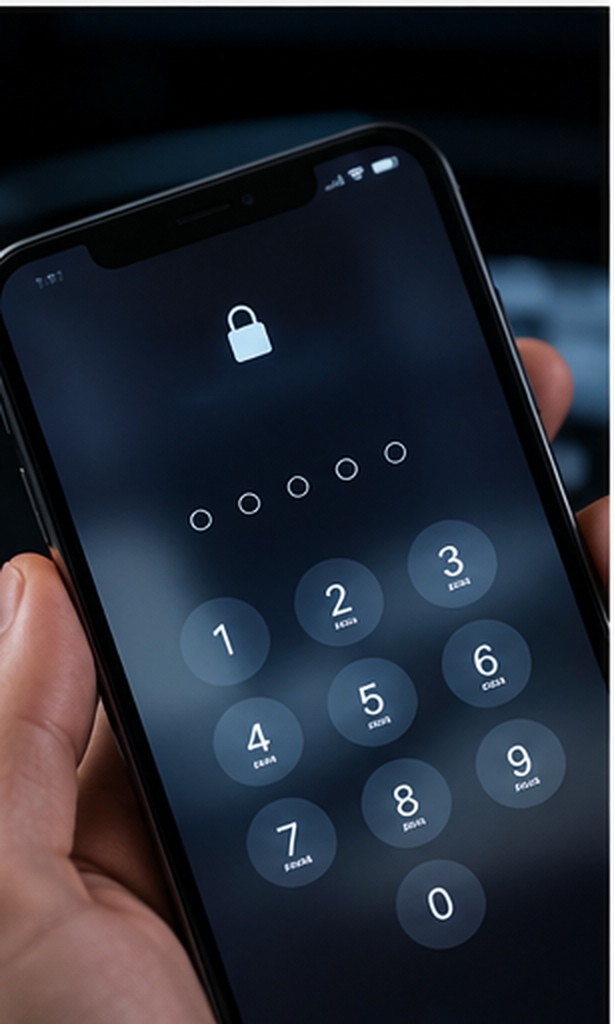
Apple's native per-app lock is available on iOS 18 and later for many apps, including downloaded apps such as WhatsApp. On Face ID models it can require Face ID, on older compatible models it can use Touch ID, and the device passcode can be a fallback in normal conditions.
These are the short answers for the most common ways people phrase the same problem.
It helps to separate four controls that are often mixed together in search results.
Protects the entire WhatsApp app before it opens. This is the best first layer on iOS 18 or later because the control is enforced by iOS rather than by a third-party locker.
WhatsApp can require Face ID or Touch ID before the app opens. Depending on your version, the setting can appear under Privacy as App Lock or Screen Lock. This sits inside WhatsApp rather than at the iOS Home Screen level.
Protects specific conversations and moves them into a Locked Chats area. A Secret Code can provide a separate credential for finding and opening that protected group of chats.
Archive only removes a conversation from the main list. It does not add authentication, so it should not be treated as a lock.
For iOS 18 or later, this is the cleanest method because it does not depend on a third-party app and does not require you to move your WhatsApp data anywhere.
Built into iOS, quick to enable, protects the whole app, and reduces exposure in some system surfaces.
The lock is local to that iPhone. It is not a separate WhatsApp-only password, and it does not replace account recovery or backup security.
“When I lend an unlocked iPhone to someone, the per-app lock protects WhatsApp without changing how I use the rest of the phone.”Illustrative reader scenario, not a verified testimonial

If your WhatsApp build includes its own app-lock control, you can enable it inside WhatsApp for an additional layer.
Chat Lock is useful when most of WhatsApp can remain accessible but a few conversations need extra privacy.
The iPhone app lock does not have its own WhatsApp-specific password. If you want a separate credential for selected chats, use WhatsApp's Secret Code feature in Locked Chats settings. Changing that code affects the locked-chat layer, not your iPhone passcode.
“I do not need every conversation hidden. Chat Lock is useful when only one thread contains information I want behind an extra gate.”Illustrative reader scenario, not a verified testimonial

App locking is only one control. These settings reduce what someone can learn even before they reach a locked conversation.
Answer five quick questions to see whether your current setup has obvious gaps.
This checklist combines the duplicate privacy-score requirements into one fuller 10-question audit.
Use the buttons to compare Face ID, Touch ID, device passcode, and a separate WhatsApp Secret Code.
This page is intentionally scoped to iPhone. The selector is included because the brief requested a platform chooser, but Android steps are not duplicated here.
Run the visual demo to see the iPhone flow. The Android path is intentionally not reproduced on this iPhone-only page.
The strongest setup is layered: a strong iPhone lock protects the device, while a per-app lock reduces exposure when the phone is already unlocked.
| Method | Difficulty | Security | Cost | Best for | Limitation |
|---|---|---|---|---|---|
| iPhone screen lock | Easy | Strong base layer | Free | Protecting the whole device | Does not help after you intentionally unlock and hand over the phone |
| iOS per-app lock | Easy | Strong local layer | Free | Protecting all of WhatsApp | Requires supported iOS; local to the device |
| WhatsApp internal app lock | Easy | Good secondary layer | Free | App-specific biometric prompt | Can duplicate the iOS lock prompt |
| WhatsApp Chat Lock | Easy | Strong for selected chats | Free | Protecting a few conversations | Does not lock the rest of WhatsApp |
| Screen Time workaround | Medium | Moderate access control | Free | Parental limits and time-based restrictions | Not a purpose-built privacy lock |
| Secure vault | Medium | Strong for stored files | Free / paid options | Private exports, photos, documents, notes | Does not system-lock WhatsApp on iPhone |
On iPhone, a third-party vault can protect content placed inside that app, while the iOS per-app lock controls whether another app can open.
Protects access to an app such as WhatsApp. It does not create a private file repository.
Stores imported files, photos, documents, notes, or audio inside a protected container.
Select your iPhone security type to see the most sensible WhatsApp lock route.
| iPhone family | Typical biometric | Native app lock on iOS 18+ | Recommended WhatsApp setup |
|---|---|---|---|
| Face ID iPhones | Face ID | Yes, on supported apps | Require Face ID + optional Chat Lock |
| Touch ID iPhones | Touch ID | Yes, when running supported iOS | Require Touch ID + optional Chat Lock |
| Older unsupported iPhones | Varies | No native iOS 18 feature | Use WhatsApp's own lock if available; otherwise rely on device security and Chat Lock |
Do not assume the setup worked. Test the exact privacy boundary you care about.
Start with safe owner-controlled checks. Do not use bypass tools or credential-dumping methods.
| Problem | Likely cause | Safe fix |
|---|---|---|
| Require Face ID is missing | Older iOS or unsupported context | Update iOS if the device supports it, then long-press the Home Screen app icon again. |
| WhatsApp asks twice for Face ID | Both iOS app lock and WhatsApp internal lock are enabled | Keep the layer you prefer and disable the duplicate if one prompt is enough. |
| Can't find Locked Chats | Folder is hidden or the list has not been pulled down | Pull down the chat list or enter your Secret Code in search if Hidden Locked Chats is enabled. |
| Face ID stopped working for WhatsApp | Face ID enrollment, attention, camera, or app permission issue | Confirm Face ID works for iPhone unlock, restart the device, and re-enable the lock if necessary. |
| Lock changed after an update | Major iOS or app update altered a setting | Re-check iOS app lock, WhatsApp Privacy, notification previews, and Locked Chats after major updates. |
| Forgot a Secret Code | Credential memory failure | Use WhatsApp's owner-recovery options and authenticated account settings. Do not use cracking or extraction tools. |
| Forgot iPhone passcode | Device credential unavailable | Use Apple's official account/device recovery process. A WhatsApp guide cannot safely bypass the iPhone lock. |
| Folder Lock cannot lock WhatsApp | iOS prevents third-party apps from system-locking other apps | Use Apple's native app lock for WhatsApp. Use Folder Lock only for content stored inside its vault. |
If the goal is simply to stop another person from opening WhatsApp, the iPhone's own app lock remains our first choice. Folder Lock addresses the next privacy problem: what to do with sensitive files, media, notes, recordings, contacts, or financial details that you choose to keep outside the chat itself.
Its iPhone app works as a separate protected vault. That makes it useful after you save a confidential attachment, export a document, keep a private recording, or want sensitive reference information separated from ordinary Photos, Files, or Notes storage. It does not take control of WhatsApp or replace Apple's app-level lock.
Folder Lock for iPhone is developed by NewSoftwares.net. Its current iOS material describes vault storage, encrypted cloud backup, private browsing, wireless transfer, failed-login monitoring, recovery controls, and cross-platform file access. Those capabilities protect content placed in Folder Lock; they do not create a system-level lock around WhatsApp.
Different privacy situations call for different controls.
Use the iOS app lock so a person borrowing your unlocked iPhone cannot casually open WhatsApp.
Add Chat Lock and, if useful, a Secret Code to that chat rather than overcomplicating every WhatsApp interaction.
Keep the financial app locked and avoid leaving exported statements or screenshots in unprotected locations. A secure vault is useful for files you intentionally retain.
Use Guided Access when you want to keep the child inside one allowed app, or Screen Time when the goal is parental restriction rather than secret storage.
Use a strong device passcode, Stolen Device Protection, per-app locks for sensitive apps, and review linked WhatsApp sessions.
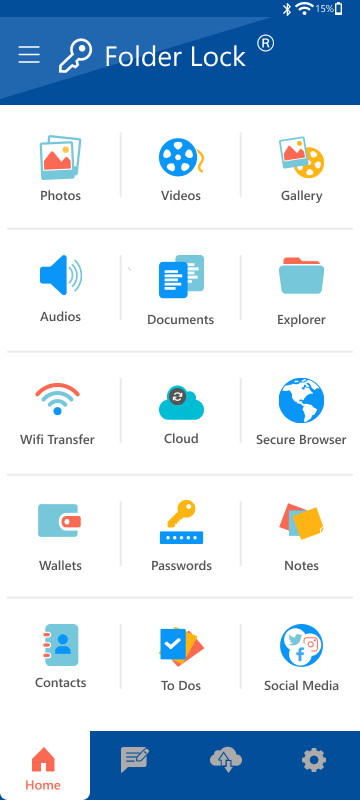
You do not need another app merely to put an opening lock on WhatsApp when your iPhone supports Apple's native control. Folder Lock becomes relevant when your privacy plan also includes files and personal records that live outside WhatsApp. The capabilities below describe that separate vault role.
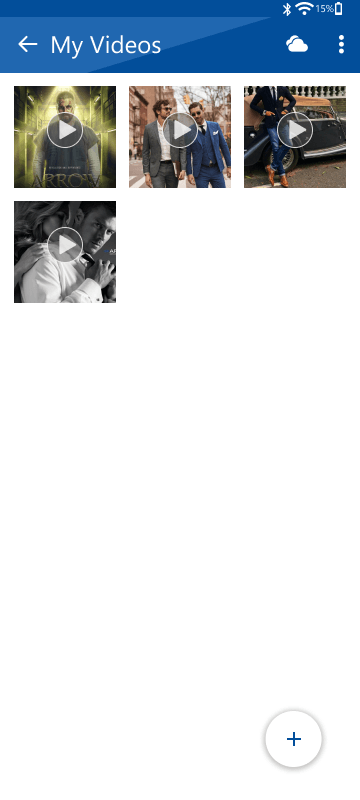
Selected pictures and clips can be brought into Folder Lock and organized in protected albums. This is useful for media retained from a conversation that you do not want left in the ordinary photo library.
MediaThe vault can hold documents and audio content, and the iPhone app includes a voice-memo workflow. This gives confidential attachments and recordings a dedicated location outside the normal Files or media workflow.
FilesFolder Lock can keep private text notes, contact records, and structured wallet information such as banking, card, identification, or account details inside the protected app instead of relying on screenshots or loose notes.
RecordsThe developer describes encrypted backup for vault content with support for services including Dropbox, Google Drive, and OneDrive. This is separate from WhatsApp's own backup system and should be configured according to the files you actually want synchronized.
BackupAn intrusion-monitoring feature can keep evidence of unsuccessful attempts to open the vault, including an image captured during a failed-access event. It is useful for noticing attempted access to Folder Lock, not for monitoring attempts to open WhatsApp.
MonitoringThe built-in browser is designed to reduce the usual local browsing trail, and files downloaded through it are routed into the appropriate protected category. Use it when you want a download to enter the vault workflow directly.
BrowsingA local web-transfer mode lets an iPhone exchange vault files with a PC or Mac across the same network. This can be convenient when a confidential document needs to move between the phone and a computer without passing through a chat.
TransferThe settings material includes a recovery-email workflow and an optional alternate credential that opens non-sensitive decoy content. Treat the decoy as an extra privacy feature, not as a substitute for a strong primary vault password.
AccessThe product is designed so encrypted Folder Lock content can participate in a broader multi-device workflow. Check the current plan and platform support before depending on a particular device count or transfer path.
DevicesFolder Lock cannot place a system-level gate around WhatsApp on iPhone, and important data should be exported or backed up before the Folder Lock app is removed because locally stored vault content can be lost with the app.
Important limits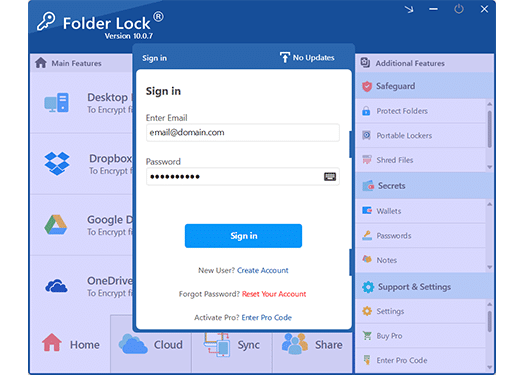
Use this workflow only for content you deliberately retain outside WhatsApp, such as a saved image, statement, document, note, or recording. The native iPhone lock remains the correct control for opening WhatsApp itself.
Use the App Store listing for Folder Lock and confirm NewSoftwares as the developer before you create a vault. Avoid look-alike apps when the content you plan to store is sensitive.
The supplied setup documentation permits a short minimum credential, but a longer unique password is the safer choice. Do not reuse the iPhone passcode or the WhatsApp two-step verification PIN.
Review the password-recovery settings and make sure the recovery email is one you still control. If you choose to use the decoy-access option, test both credentials so you understand which content each one exposes.
Add selected photos, videos, documents, audio, notes, contacts, or wallet records according to your privacy need. Keeping the vault selective makes it easier to know which copy is protected and which copy may still exist elsewhere.
After an import, look in Photos, Files, Downloads, or the source app for a second copy. Do not delete the original until you have opened the protected copy and confirmed that you can recover it safely.
If the vault contains material you cannot replace, configure an appropriate backup or export routine before uninstalling Folder Lock. Removing the app can remove data stored locally inside it, so app deletion should never be your first troubleshooting step.

iOS isolates apps from one another. A normal third-party security app cannot simply intercept and block the launch of WhatsApp system-wide. That is why the native iOS per-app lock is the correct control for WhatsApp itself, while vault apps protect content stored inside their own container.
Both biometric systems are integrated with the iPhone security architecture and are designed to authorize access without exposing the biometric template to apps. The practical choice is usually dictated by the iPhone model, not by installing another locker.
After a restart, iPhone normally requires the device passcode before biometrics resume. A lock should not be treated as permanently verified after major iOS or WhatsApp updates; re-test the app opening, notification previews, and Locked Chats behavior.
End-to-end encryption protects message content between communicating endpoints. It does not stop someone who is already holding your unlocked phone from opening the app. Local app lock and Chat Lock address that different threat.
An iPhone app lock controls local access on the device. It does not automatically change how backups are protected. Review WhatsApp backup settings and your Apple account's backup protections separately.
Folder Lock's iPhone settings include a recovery path tied to email and an optional decoy credential that can open a harmless set of content. These controls belong to the vault only. They do not change the iPhone passcode, Face ID enrollment, WhatsApp account PIN, or WhatsApp Chat Lock code.
Treat uninstalling the vault as a data-management event, not a routine reset. First verify that any irreplaceable item has been exported or backed up somewhere you can access independently. The product documentation warns that local content kept inside the app can disappear when the app is deleted.
No app lock makes biometrics infallible. The safer model is layered: use Face ID or Touch ID as the convenient gate, keep a strong device passcode, enable Stolen Device Protection where appropriate, and avoid registering another person's biometric appearance or fingerprint on your device.
These options are not direct substitutes. They operate at different layers.
| Option | Whole app | Individual chat | Separate chat code | Works when lending phone | Best role |
|---|---|---|---|---|---|
| iOS native | Whole app | No | Device credential | Yes | Primary lock |
| WhatsApp App Lock | Whole app | No | Biometric/device | Yes | Optional second layer |
| WhatsApp Chat Lock | No | Selected chats | Secret Code | Yes | Sensitive chats |
| Screen Time | Indirect | No | Screen Time code | Conditional | Parental limits |
| Guided Access | No | No | Exit credential | Yes | Lending phone |
The developer material supplied for this guide lists a no-cost Free tier and a Pro price of $39.95. The same comparison shows larger capacity and a higher device-sync allowance for Pro. Because software pricing and entitlements can change, confirm the current App Store or purchase-screen terms before paying.
| Capability | Free | Pro |
|---|---|---|
| Listed price | $0 | $39.95 |
| Listed locker capacity | 1 GB | Unlimited |
| Listed device synchronization | 2 devices | 5 devices |
| Mobile app access | Included | Included |
| Secret-data features | Included | Included |
The comparison above reflects the developer material reviewed for this page, not a promise that every storefront or future release will keep the same price or limits. Check the current purchase screen before making a decision.
Use the iOS per-app lock. Folder Lock is not needed for this job.
Use WhatsApp Chat Lock and create a Secret Code if you want a separate code for the Locked Chats area.
Use Guided Access to keep the child inside one allowed app, or Screen Time for parental restrictions. Lock WhatsApp if it should remain unavailable.
Lock WhatsApp and move files you intentionally retain into an appropriate protected storage location. A secure vault can be useful here.
Use a strong device passcode, Face ID or Touch ID, Stolen Device Protection, locked sensitive apps, and a clean linked-device list.
“I hand my unlocked phone to family members to show photos, so the iOS WhatsApp lock solves the exact risk without adding another app.”Illustrative scenario: shared-device user
“Most of my chats are ordinary, but one project conversation contains confidential details. I keep the whole app locked and add Chat Lock to that thread.”Illustrative scenario: freelancer
“A statement arrived through chat and I needed to keep it. I moved the retained file into protected storage instead of leaving it in Downloads.”Illustrative scenario: financial-document workflow
“For my child, I do not need a secret vault. Guided Access and Screen Time are clearer because the goal is controlled use, not hidden data.”Illustrative scenario: parent
These tools are developed by NewSoftwares.net, the same team behind Folder Lock. They are listed as adjacent privacy tools, not as substitutes for the native iPhone WhatsApp lock.
On iOS 18 or later, touch and hold the WhatsApp icon on the Home Screen, choose Require Face ID, confirm, and authenticate. You can also enable WhatsApp's own app lock inside WhatsApp privacy settings when that option is available in your installed version.
The iPhone's per-app lock uses Face ID, Touch ID, or the device passcode rather than a separate password for the whole WhatsApp app. For individual conversations, WhatsApp Chat Lock can use your device authentication and can also support a separate Secret Code for locked chats.
Yes. On a Touch ID iPhone, the native app lock can use Touch ID. On supported iOS versions the lock can also fall back to the device passcode, although Stolen Device Protection can require biometrics without passcode fallback when the iPhone is away from familiar locations.
For the whole app, use the iPhone's Require Face ID, Touch ID, or Passcode control. WhatsApp's two-step verification PIN protects account registration, not app opening. If you want a separate code for selected conversations, use Chat Lock and create a Secret Code for the Locked Chats folder.
Open the conversation, tap the contact or group name, choose Chat Lock, and authenticate. The chat moves out of the main list into Locked Chats and its notification content is reduced. Menu wording can change between WhatsApp releases.
Use Chat Lock on each conversation you want to protect. This is different from locking the entire WhatsApp app at the iOS level. You can combine both if you want an outer app lock plus extra protection for selected conversations.
Chat Lock places selected conversations in a protected Locked Chats area that requires device authentication or a configured Secret Code. It is designed for conversation-level privacy and is not the same as hiding or locking the whole WhatsApp app.
For the iOS app lock, touch and hold WhatsApp, choose Don't Require Face ID, Touch ID, or Passcode, then authenticate. For WhatsApp's own app lock, return to WhatsApp privacy settings and switch the lock off. For Chat Lock, open the locked conversation settings and disable Chat Lock.
The iOS app lock uses your device authentication, so change the iPhone passcode in Settings if you need to change that credential. For a WhatsApp Locked Chats Secret Code, open Locked Chats, go to its settings, and change the Secret Code there.
WhatsApp uses end-to-end encryption for personal messages and calls in transit. App locking is a separate local access control. Backup protection is also a separate setting, so do not treat an app lock as a replacement for account security or backup security.
Yes. iOS 18 and later provide a native per-app lock for many apps. Touch and hold the app icon and choose Require Face ID, Touch ID, or Passcode. Screen Time is no longer the only built-in workaround for limiting access.
Biometrics are usually more resistant to casual shoulder surfing and reuse than a short PIN, but your device passcode remains important because it can be a fallback. A strong alphanumeric passcode plus Face ID or Touch ID and Stolen Device Protection provides a better layered setup.
A restart does not normally serve as a legitimate way to remove an iOS app lock. After a reboot, iPhone security commonly requires the device passcode before biometrics resume. If a lock seems to disappear after an update, re-check the app's lock state and iOS settings.
On iOS 18 or later, touch and hold a downloaded app and choose Require Face ID, then Hide and Require Face ID when available. The app moves to the Hidden folder in App Library. Hiding also changes where notifications and app information can appear.
Use only owner-recovery paths. For iOS app locks, recover access through your own iPhone passcode or Apple account recovery as applicable. For WhatsApp account or Secret Code issues, use WhatsApp's official recovery options. Do not use bypass tools or credential-dumping methods.
Open Locked Chats, enter its settings, create or confirm a Secret Code, and enable the option that hides Locked Chats if your current WhatsApp version offers it. Once hidden, you reveal the folder by entering the Secret Code in WhatsApp search.
iPhone does not expose a universal password switch for arbitrary Files folders. You can lock or hide supported apps at the iOS level, use protected areas inside certain Apple apps, or place sensitive files inside a dedicated secure vault such as Folder Lock.
Yes. The most direct current method is the native iOS per-app lock on iOS 18 or later. WhatsApp can also offer its own app lock, and Chat Lock adds a separate layer for individual conversations.

The brief contains many adjacent mobile-security queries. This page keeps the detailed steps iPhone-specific to avoid duplicating sibling platform pages.
For photos, use the protection features available in the Photos app and iOS, or move highly sensitive media into a dedicated secure vault. The right choice depends on whether you want native convenience or a separate container.
Use the banking app's own authentication plus the iOS per-app lock when supported. Avoid storing one-time codes, statements, or card details in exposed screenshots. Stolen Device Protection is especially relevant when theft and known-passcode risk are concerns.
On iOS 18 or later, eligible downloaded apps can be hidden after you choose Require Face ID, Touch ID, or Passcode. Hidden apps move to the protected Hidden folder in App Library. Hiding is stronger than simply removing an icon from the Home Screen, but some traces can still appear in Settings or purchase history.
Screen Time is better thought of as a usage-control system than a privacy vault. For a child borrowing your iPhone temporarily, Guided Access is often cleaner because it keeps the device inside one allowed app until you authenticate to leave.

If your goal is simply to stop someone from opening WhatsApp on your iPhone, use Apple's native per-app lock on iOS 18 or later. It is the most direct solution because the operating system controls the app-opening gate.
Add WhatsApp Chat Lock when individual conversations need a second layer, and use a Secret Code if you want the Locked Chats area to have a separate credential. Keep account security, linked-device reviews, notification privacy, and Stolen Device Protection in the same plan.
Folder Lock is useful for a different part of the workflow: private files and media you deliberately store outside WhatsApp. We would not install it merely to lock WhatsApp on iPhone, but it can be a practical companion if you also need a dedicated content vault.